

Start with Span Management. Expand to Everything Else.
If you’re in vegetation management, you know that span management is one of the most complex, high-stakes processes to handle. That’s why companies turn to MightyFields—it covers UK span vegetation management processes out of the box. But that’s just the beginning.
Once you see how simple it is to plan, execute, and record vegetation work with MightyFields, expanding to other field and office processes is the next logical step. With our drag-and-drop form builder, you can create digital forms that work exactly the way your teams do—whether they’re on a railway site, in an ecologically sensitive area, or back at HQ running customer audits.
Step 1
Master Span Vegetation Management
MightyFields comes pre-configured to manage span vegetation processes to UK standards.
- Survey spans, cut vegetation, and audit completed work
- Use built-in safety and compliance checks
- Generate instant reports for landowners and DNOs
- Work offline in remote locations with auto-sync once back online
- Save 30% on admin time (and headaches!)
Companies like Scottish Woodlands and BTS Group started here. Once they saw how much easier their day-to-day operations became, they decided to go further.

Step 2
Build Custom Forms for Railway and Ecology Work
The same field teams clearing spans often work on other projects — railway clearances, ecology compliance checks, highway maintenance, and more.
With MightyFields Studio, your team can:
- Create custom forms for different fieldwork processes (e.g. ecology compliance)
- Track the work and its compliance (e.g. protected species, restricted zones, etc.)
- Automate reporting for the work done (e.g. automated emails and data logs)
And the best part? You can build these forms without needing developers. Drag. Drop. Deploy.

Step 3
Go Beyond the Field—Online Forms for Customer Satisfaction & Audits
Your digital transformation doesn’t stop at the field gate.
MightyFields lets you create online forms for processes like:
- Customer satisfaction surveys
- Internal audits and compliance checks
- Pre-job risk assessments or
- post-job audit forms
Send them out via email or have them available on your internal systems — fully branded and tailored to your needs.

Why It Matters
One App, All Processes: No need for multiple tools. One solution for your teams and subcontractors.
Custom but Simple: Build your own forms in-house—no coding, no delays.
Scale as You Grow: Start with 10 users, grow to 300. Add new processes when you’re ready.
Offline and Online: Whether it’s a team on the tracks or a customer survey online, MightyFields works where you need it.

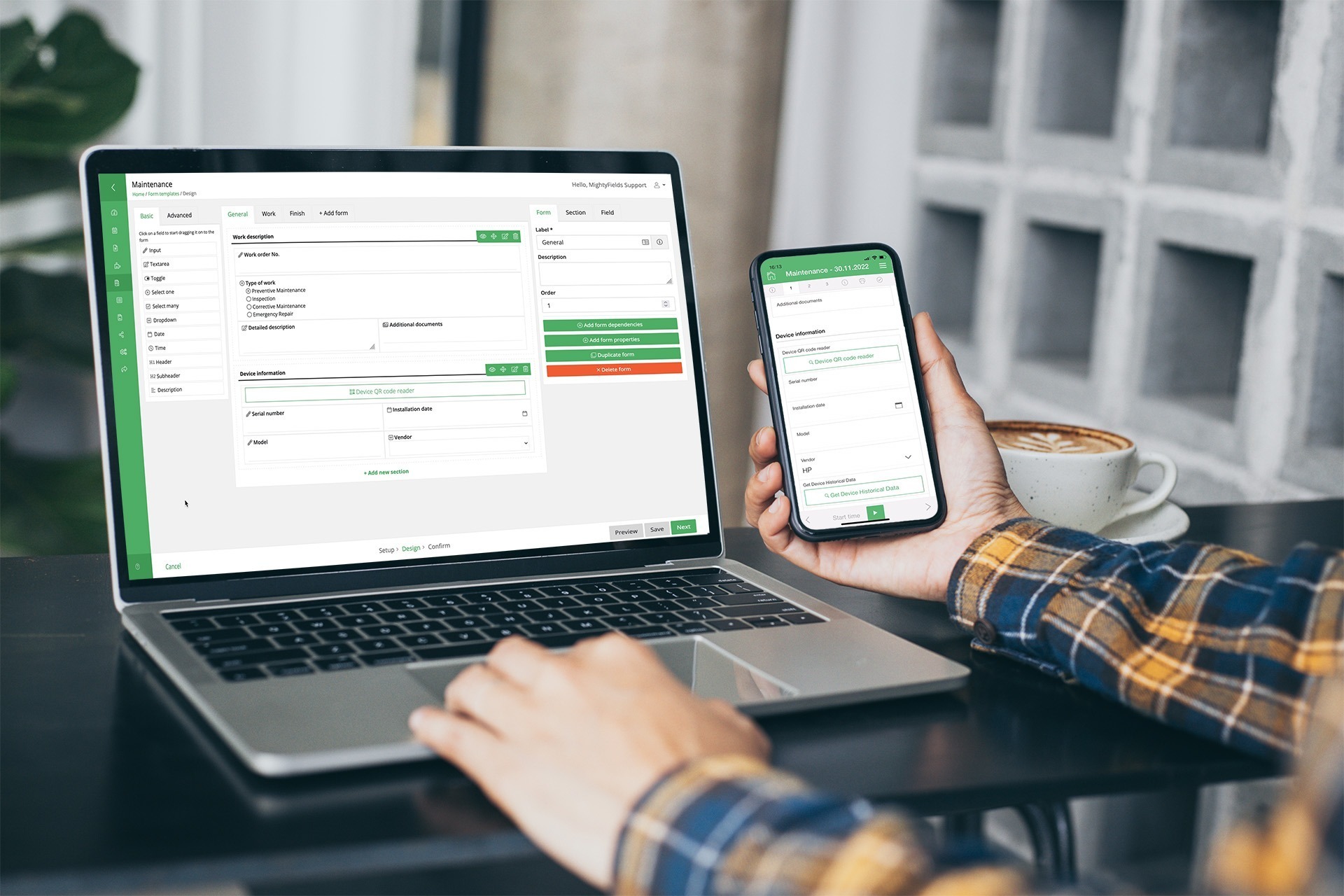
Design field experience in the back office with a no-code form designer
When we need to collect data from the field (for instance, during maintenance), we can use various tools, such as paper forms or a mobile app for capturing information. What if we had a tool with which we could define not only field data capture but also all other captures in our company?
Creating digital field experiences from the back office will be the main topic of this article. By creating a template for how a digital form will appear, you can define the experience your field workers will have. As a result, personnel at the working site can effectively complete tasks and gather data using ready-made digital forms.
Creating digital forms, which are electronic equivalents of paper forms, does not need to be a complex process. Using a drag-and-drop form builder makes creating forms simple.

No coding knowledge required - When using a drag-and-drop form your back-office teams can easily create forms without the need for any tech-support.

Faster time-to-market - from the idea of capturing data from the field to actual use in the field in a couple of days.

Capture is defined in-house, where we know the process best - less time and communication spent on communicating with an external contractor.

Faster creation of forms - When using a no-code form builder you can create a digital form in only a couple of clicks.
Capabilities of using a flexible working environment
A user can create a digital form by simply selecting an element and dragging it to the desired location. This eliminates the need for extensive technical knowledge or programming. A drag-and-drop functionality allows for easier creation and editing of forms.
You can see an example of a MightyFields drag-and-drop form in the picture below. In just a few clicks, you can create a digital form and have it ready for use by field personnel right away.
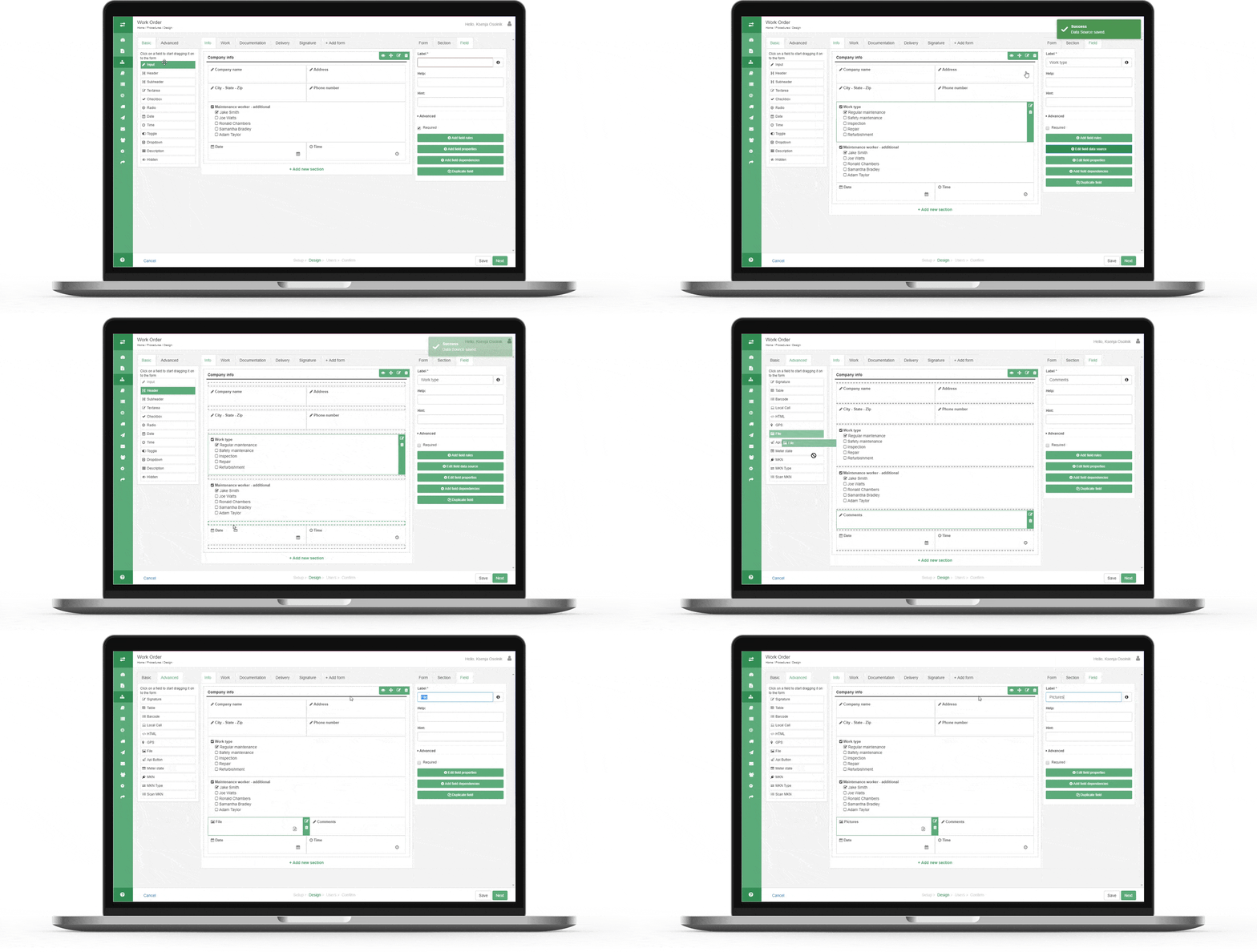
You may select from several form capabilities on the left side of the screen. It is possible to choose from over 30 basic and advanced elements.
The properties are displayed on the right side, where directions for field workers may be added, or element information can be updated.
And lastly, in the middle, you can see the form design where elements are dragged-and-dropped in order to create a form. This is the appearance of the form, where the user will be able to see it on their mobile phone, tablet or online. The parts of the digital form are shown visually, making it possible to quickly and easily alter the form as needed.
To sum up, creating digital forms tailored to fit your specific data collection requirements is possible without the need for detailed technical knowledge by using a drag-and-drop form builder.
Explain field situations with annotated images
A Picture is worth a thousand words - and prevents misinterpretations
The above phrase is often used when a picture or image can more easily explain or describe something rather than spoken words. Asking someone to explain a situation with words can prove to be difficult and time-consuming as well as lead to misinterpretation.
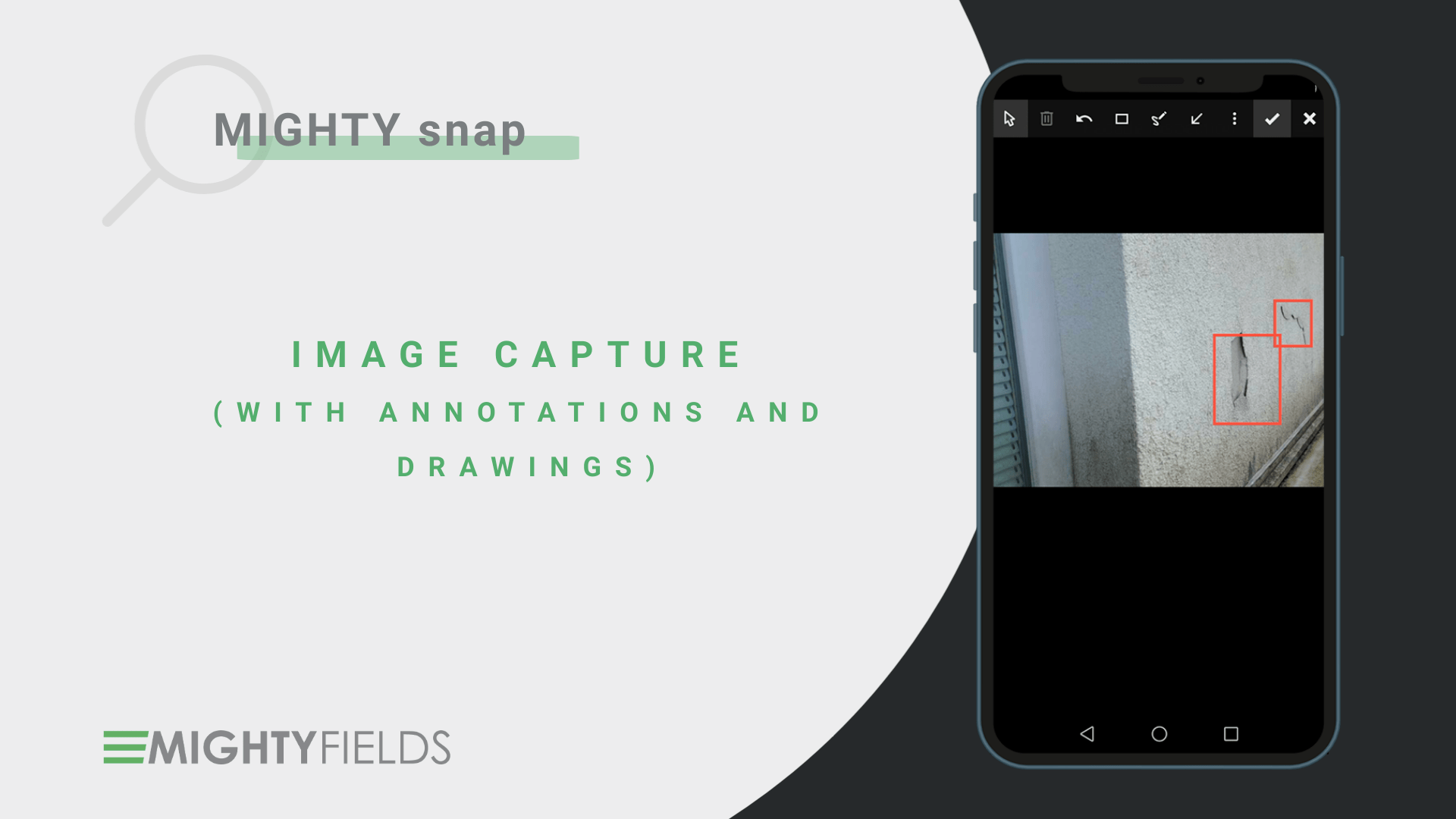
Let’s look at an example from a field worker’s perspective on a building inspection. Field workers need to collect all the necessary data about the current state of the façade, the damages that have occurred, and the damage location. It will take quite some time to collect all the data if the damages are substantial. Instead of writing everything down, the field worker could simply take a photo of the damages on their mobile phone or a tablet and highlight the damaged area that needs to be repaired.
As a result, the team responsible of resolving the issue has exact information on where and what needs to be done. When all the repairs are finished, they would again take the picture, highlight the fixed area and store it as proof of the completed job.
With the new MigthyFields feature, image annotation, your workers can now capture photos from their camera or add them from their photo library. Multiple photos can be added when necessary. It is possible to add drawings or text to provide more specific information. The annotations on the photo can be adjusted based on color, size, and opacity. Later a description of the annotations can be added for an easier interpretation.
Save time – Visually highlighting the problem on the photo reduces the time needed to explain something with text as there is no need to type all the information.
Prevent misinterpretations - pinpointing a focused area (for example an issue, broken part, or similar), on the photo allows for easier interpretation of the problem.
Build transparency – you can mark on the photo and provide visual proof of job completion by adding a before and after photo
Improve First Time Fix Rate (FTFR) - know all the necessary job details before arriving at the job site.

Reduce time for administration
What it really looks like to reduce time for administration by 30 % using MightyFields:
your office and field teams will be guided thru the process as defined by you
everyone will access all relevant details at every step
reports from your sites will be automatically generated instantly
all the documentation will be available in ONE app, with ONE click
What will change?
1st real change: Your teams at the site will use a simple mobile app.
- In their mobile app, your workers will access the list of work orders that need to be executed
- The app will lead them through the process as defined by you
- They will report from the site instantly, with rich data (photos, videos, etc.)
- They will also access all relevant information from previous steps in the same app
2nd real change: Branded documents will be automatically prepared from their reports
- Your reports from the site will include rich data (photos, drawings, etc.)
- You will use these documents for
– Internal documentation needed for the next steps,
– Utility client documentation about work done, safety etc. and
– Landowner communication about work that is going to be done
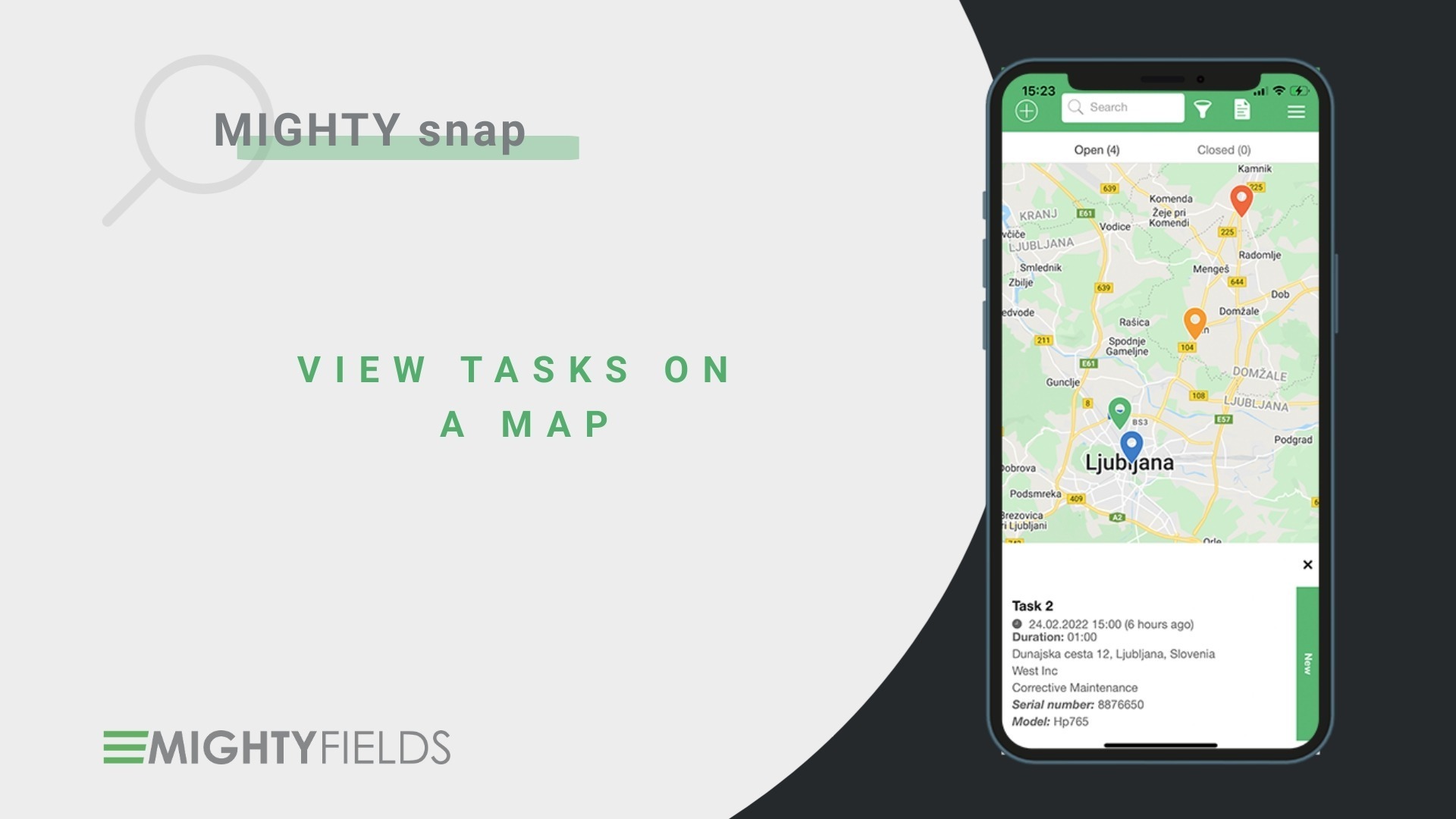
Benefits of viewing the tasks on the map
The map view is available both for the back office administrator when they schedule tasks and for field workers on mobile devices executing the tasks. See how it works and what are the benefits?
The situation in the office: While scheduling the work in Mighty Scheduler, map view enables the administrator to manage resource allocation better and identify hot spots.
Better overview of tasks when scheduling work – Are the issues too spread out for your teams to respond effectively? Would it be more efficient to hire more field technicians? With the map, you can identify hot spots or the need for more technicians.
Less driving time – Make sure your team drives the least possible. Driving less reduces stress, lowers the carbon footprint, saves time and money etc. So why not use it to make everybody happy?
The situation in the field: The field worker finds themselves in the field with nothing to work on (because of cancellation or early finish). They can use the map view on a mobile device to see all the unscheduled tasks in the area and make their day more effective.
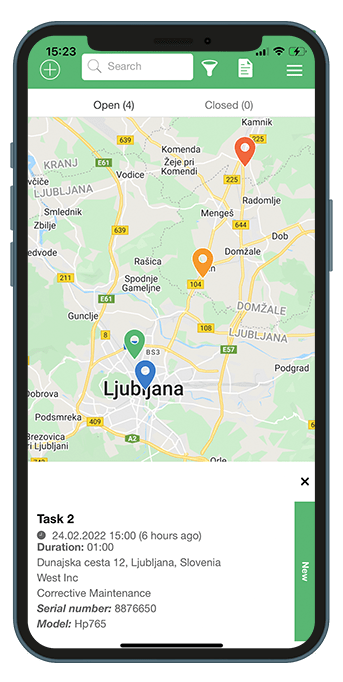
Easier to plan task executions – Do technicians have the freedom to set their schedule – to some extent? Mobile users can easily plan their stops when visits are scheduled for a day.
Less driving time – Who doesn’t want that? The field worker will choose the task closest to him, and besides, he can start navigating to the location with their preferred navigator right from the task.